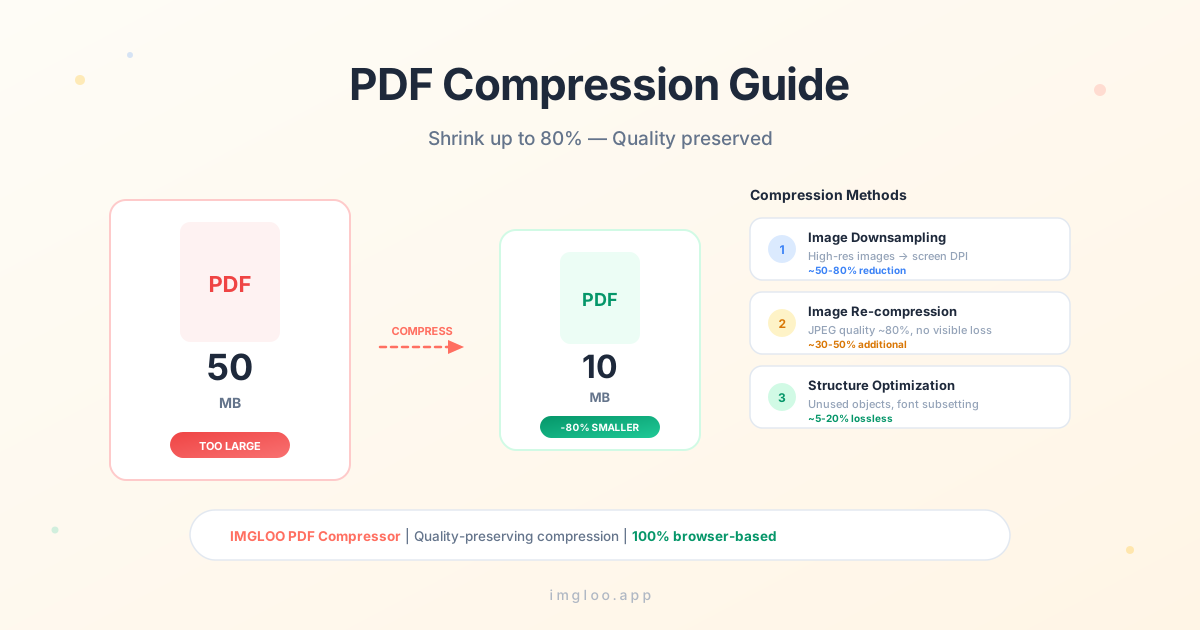
Shrink PDFs up to 80%,
without losing visible quality
PDFs that exceed the 25 MB email attachment cap, contracts you can't send over chat, scanned documents filling up your cloud storage. PDF size is a problem everyone hits eventually. But the wrong tool can blur text or break tables. This article covers why PDFs get heavy in the first place, and how to shrink them without noticeable quality loss.
Why PDFs get heavy
Scanned images
PDFs created by scanning paper documents contain a full high-resolution image on every page, often pushing them to tens or hundreds of MB. They're not really text — they're images dressed up as PDFs, which makes them far heavier than typical documents.
Embedded fonts
To make sure the file looks the same on any computer, the entire font file is embedded inside the PDF. A single CJK font can be 1–3 MB, and using multiple fonts can easily push that past 10 MB before the actual content is counted.
Unused objects and metadata
Edit history, deleted-but-leftover images, and unused font glyphs — "invisible leftovers" can take up a surprising portion of the file. The longer a PDF has been edited, the more of this accumulates.
Three PDF compression methods
Different tools use different approaches. Which method gets applied determines whether quality is preserved and how small the result becomes.
Image downsampling
~50–80% reductionReduces the resolution of images inside the PDF to a screen-friendly level (150–200 DPI). Most effective on documents that don't need print-quality output.
Image re-compression
+30–50% reductionRe-encodes the embedded images as JPEG/JPEG2000. At quality ~80%, the visual difference is barely perceptible while files get noticeably lighter.
Structure optimization
5–20% losslessRemoves unused objects, merges duplicates, and subsets fonts (keeping only the glyphs actually used). Pure size savings with zero impact on quality.
How to shrink without quality loss using IMGLOO
IMGLOO's PDF compressor applies all three methods in stages, automatically finding the right balance for your intended use.
- 1
Upload your PDF
Drag and drop or click to select. Files are processed entirely inside your browser and never leave your device.
- 2
Pick a compression level
Choose Light, Medium, or Strong. Light keeps print-quality, Medium is for general office use, and Strong is optimized for mobile and web viewing.
- 3
Download the result
Once compression finishes, the result is ready to download alongside the size-reduction percentage. A preview lets you compare quality immediately.
Shrink your PDF now
No install, no signup. Processed instantly in your browser.
Open the PDF CompressorFrequently asked
Will text become blurry after compression?+
No. Text is stored as text objects inside a PDF and is unaffected by compression. Only images are degraded — and on Light mode you can barely tell the difference. The exception is scanned PDFs, where text is itself stored as an image and may blur under heavy compression.
How small does it get?+
Scanned PDFs typically shrink by 60–80%, while text-heavy PDFs see 10–30% reduction. If your original was already compressed, the gain may be smaller. The exact reduction is shown on the result screen.
Can it compress password-protected PDFs?+
You'll need to remove the password first. IMGLOO doesn't process password-protected PDFs for security reasons. If you know the password, save the file without it from a PDF viewer and upload again.
Is the output safe for printing?+
Light mode preserves around 200 DPI, which is fine for office printing. For professional publishing or high-resolution print (300+ DPI), use the original.