PDF Metadata Security Guide
Hidden Personal Info in Your Documents
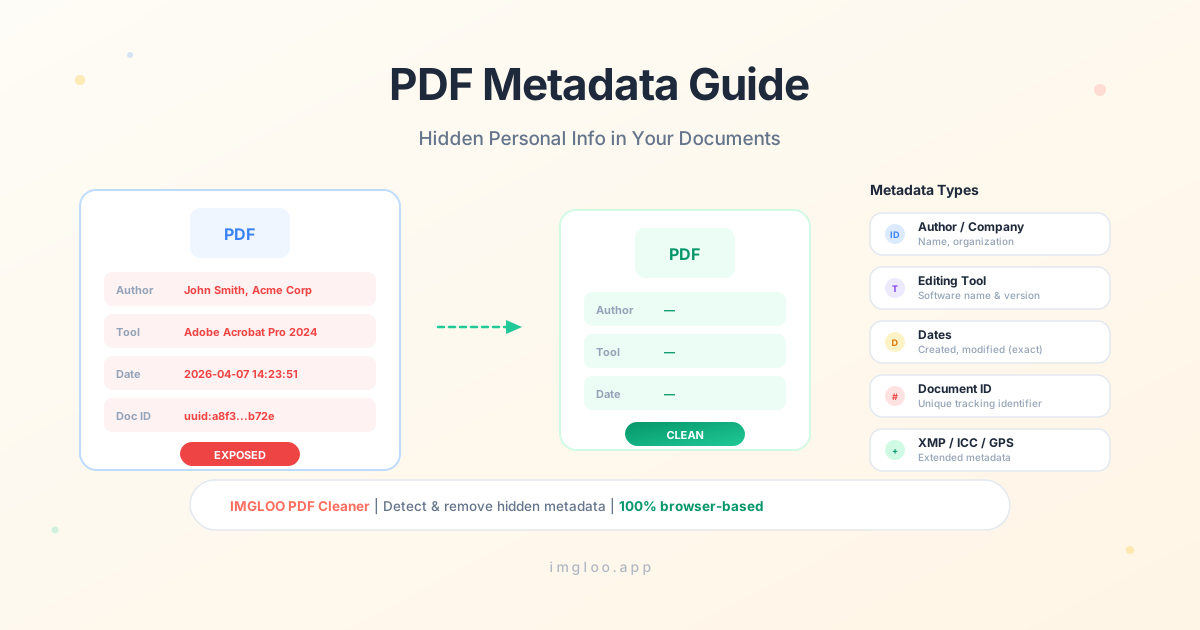
When sharing a PDF, it's easy to think only the visible content gets shared. But hidden metadata can reveal the author, editing history, and even location data along with the document.
What Is PDF Metadata?
Metadata is information about the document itself. Separate from the content (text, images), it automatically records who created the PDF, which tool was used, and when it was created.
PDFs have two main metadata stores: the Info Dictionary (author, title, creator tool, etc.) and XMP metadata (detailed editing history, document IDs, ICC profiles, and more).
What Information Can Be Exposed
Author / Company Name
The name of the person who created the PDF or their affiliated company is recorded. This information may persist even in documents you intend to share anonymously.
Editing Tool
The name and version of tools used to create or edit the document — Adobe Acrobat, Microsoft Word, etc. — are recorded.
Creation / Modification Date
The exact date the document was first created and last modified is recorded down to the second.
Document ID
Each PDF is assigned a unique Document ID. This ID can be used to track multiple versions of the same document or trace its origin.
Other Sensitive Info
GPS coordinates, ICC color profiles, print settings, OutputIntent, and other unexpected information may be included.
Why Metadata Leaks Are Dangerous
Tracing Anonymous Document Authors
When sharing whistleblower or anonymous tip documents as PDFs, author names or company names left in metadata can expose the identity of the source.
Document Version Tracking
Document IDs can be used to link multiple versions of the same document or trace the path of a leak.
Traces of Deleted Content in Edit History
If previous editing history remains in XMP metadata, traces of content you thought was deleted may be discovered.
Check and Remove Metadata with IMGLOO
IMGLOO PDF Cleaner automatically detects metadata and lets you selectively remove it.
- 1
Upload PDF
Drag and drop or select the PDF you want to inspect. Files are never sent to a server.
- 2
Review Metadata
The number of detected metadata items — author, editing tool, dates, document ID — is displayed. Pro users can view the detailed report for specifics.
- 3
Selectively Remove and Download
Remove just metadata, or also remove other threats like JavaScript and phishing links. Document content remains intact.
Frequently Asked Questions
Does removing metadata change the document content?+
No. Metadata is completely separate from document content (text, images, layout). Removing only metadata leaves the document exactly as it was.
What metadata gets removed?+
Both the Info Dictionary (author, title, creator tool, dates, etc.) and XMP metadata (editing history, document IDs, ICC profiles, OutputIntent, etc.) are removed.
What can I see in the Pro detailed report?+
The Pro detailed report shows the specific content of detected metadata: author names, editing tools, creation/modification dates, XMP fields, OutputIntent information, and more.
Are my files uploaded to a server?+
No. IMGLOO processes everything in your browser. Your PDF files are never sent to any external server, so you can safely use it with confidential documents.